

Contents
- 1 Grade 10 Selection Portal Login: Your Ultimate Step-by-Step Guide
Grade 10 Selection Portal Login: Your Ultimate Step-by-Step Guide
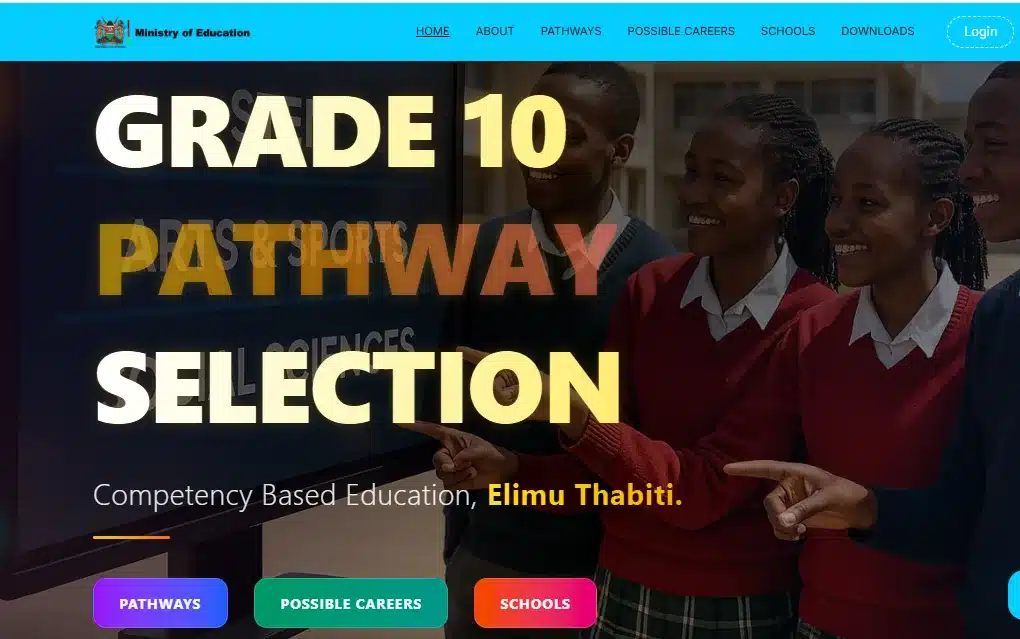
Navigating the Grade 10 selection process is a critical step for students under the Competency-Based Curriculum (CBC). The official selection portal is the gateway to choosing your Senior School pathway and subjects.
This guide is designed to help students, parents, and school administrators successfully log in to the Grade 10 Selection Portal quickly and without hassle.
Step 1: Accessing the Official Grade 10 Selection Portal
The first and most important step is ensuring you are on the correct, official website. Beware of unverified or phishing sites.
- Official Link: Open your web browser (Chrome, Firefox, Safari, etc.) and navigate to the official Ministry of Education’s Grade 10 Selection System: Official Portal Address:
https://selection.education.go.ke/ - Click the Login Button: On the landing page, look for the ‘LOGIN’ button. If you are using a mobile device, you might need to tap the three-line menu icon (often called a ‘hamburger menu’) to find the login option.
Step 2: Entering Your Grade 10 Login Credentials
The login process is secure and requires specific credentials unique to your educational institution or learner profile.
Who is Logging In?
- For School Heads/Teachers: You will typically use the credentials associated with the Junior School’s NEMIS UIC (Unique Identification Code) or a specific KNEC Code and a password provided by the relevant Sub-County Director of Education (SCDE).
- For Parents/Guardians (for verification/access): Your access is usually facilitated through the school, which manages the main selection process for the learners.
Credential Fields:
- UIC/KNEC Code or Username: Carefully enter the official Junior School’s code. This is usually the Learner’s Junior School NEMIS UIC or the assigned KNEC Code.
- Password: Enter the password associated with that UIC/KNEC Code. This password is often provided to the school head/administrator.
- Verification Code: You will be prompted to enter a Verification Code displayed on the screen (this is a security measure, often a set of numbers or a CAPTCHA, which may change per session).
Once you have successfully logged in to the Grade 10 selection portal, you can proceed with the key selection steps.
- Learner Profile Update: This is usually the first action. Ensure all learner details are correct, including:
- Special Needs Status (if applicable)
- Parent/Guardian Information
- Learner Location (Home County and Sub-County)
- Pathway Selection: You must select ONE of the three Senior School Pathways for the learner:
- STEM (Science, Technology, Engineering, and Mathematics)
- Social Sciences
- Arts & Sports Science
- Subject Combination Selection: Within the chosen pathway, select the appropriate subject combinations that suit the learner’s abilities and interests.
- Senior School Selection (The Final Choice):
- Based on the selected subject combinations, you will proceed to choose your preferred schools. You are typically required to select four (4) schools from the four clusters for each subject combination.
Troubleshooting Common Login Issues
Encountering a snag? Don’t panic! Here are solutions for the most frequent issues during the Grade 10 Selection Portal login:
| Issue | Potential Cause | Quick Fix |
| “Invalid Credentials” Error | Incorrect UIC, KNEC Code, or password. | Double-check the code and password for typos. Ensure you are using the Junior School code, not a new Senior School one. |
| Forgot Password | Password was lost or not received. | Contact the SCDE (Sub-County Director of Education) office immediately, as they manage the school’s account credentials. |
| Verification Code Not Working | Typing error or case sensitivity (rare). | Refresh the page to generate a new code, or try clearing your browser cache. |
| Website is Slow/Not Loading | High traffic volume on the portal. | Try again during off-peak hours (very early morning or late at night) or check your internet connection. |
Pro-Tip for School Administrators
To improve efficiency and avoid last-minute rush, ensure the following are prepared before logging in:
- A definitive list of all Grade 9 learners and their confirmed pathway choices.
- Confirmation of the four school choices for each of the three subject combinations per learner.
- All required parental/guardian consent forms have been signed and verified.
Next Steps After Selection
Once all selections are complete and submitted through the portal:
- Download/Print Learner Profile: The system allows you to download or print the learner’s completed profile for record-keeping.
- Await Placement Results: The Ministry of Education will use the selections and performance data to place the learners in their respective Senior Schools.